Command interception
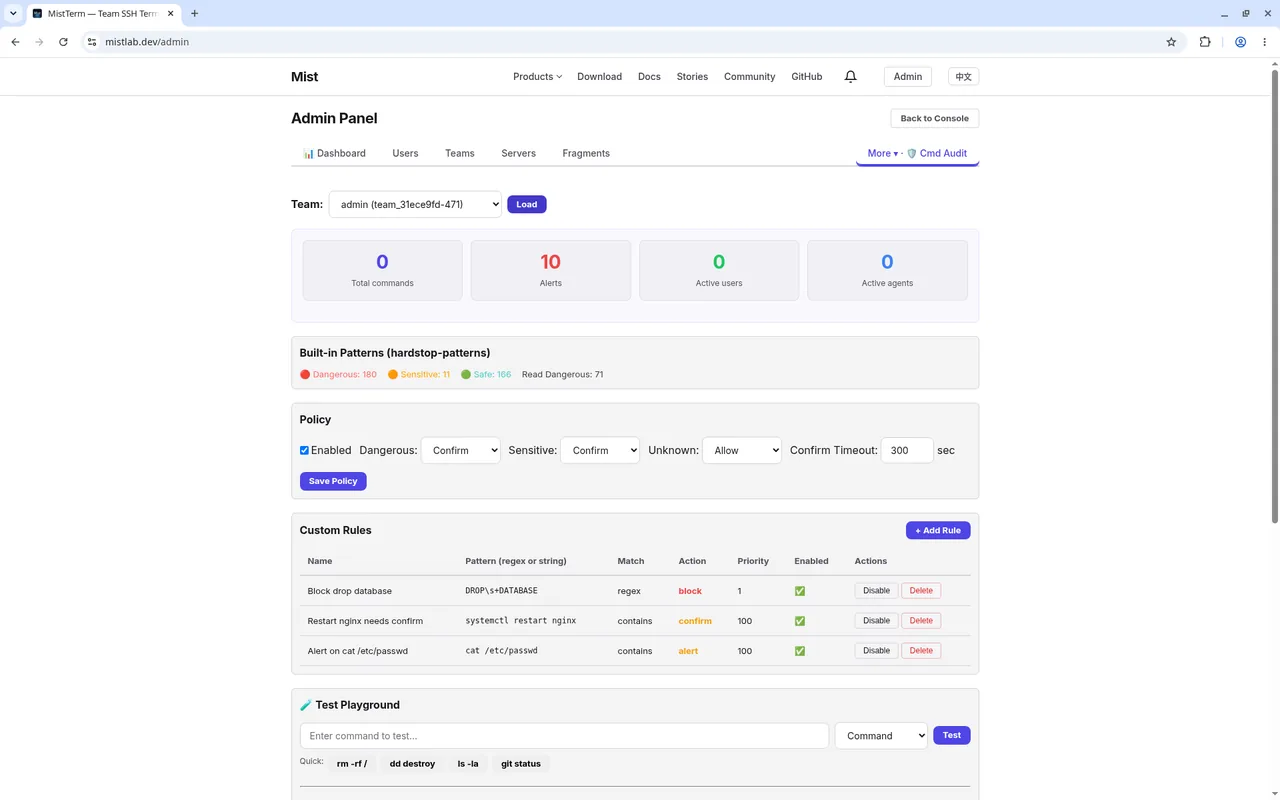
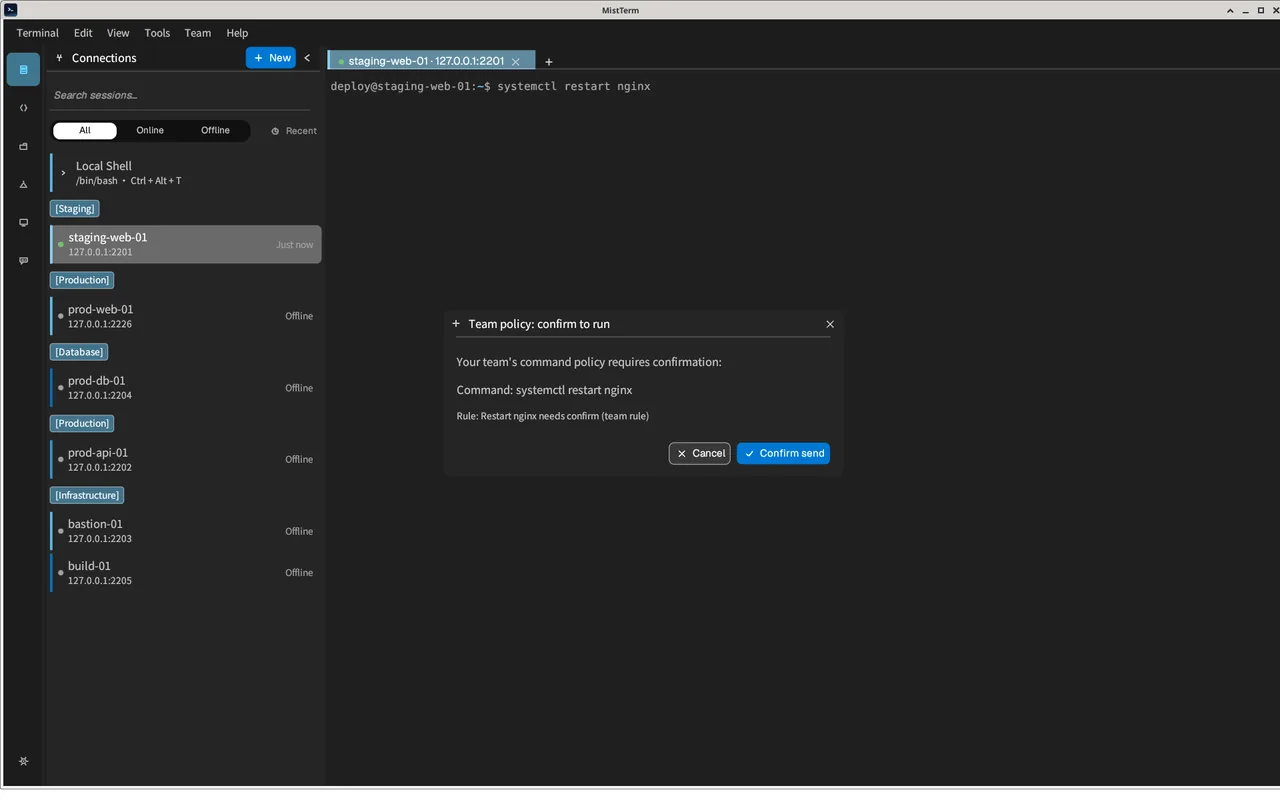
In the mistlab.dev console, open More → Cmd Audit and add rules for your team. Each rule has an action: allow, alert, block, or confirm, and higher-priority rules win when several match.
MistTerm checks typed commands against the policy when you press Enter, before anything reaches the server. A block rule stops the command, and a confirm rule shows a dialog so the user has to approve it first. The same check also covers snippets, batch execution and AI-applied commands.
Alert rules
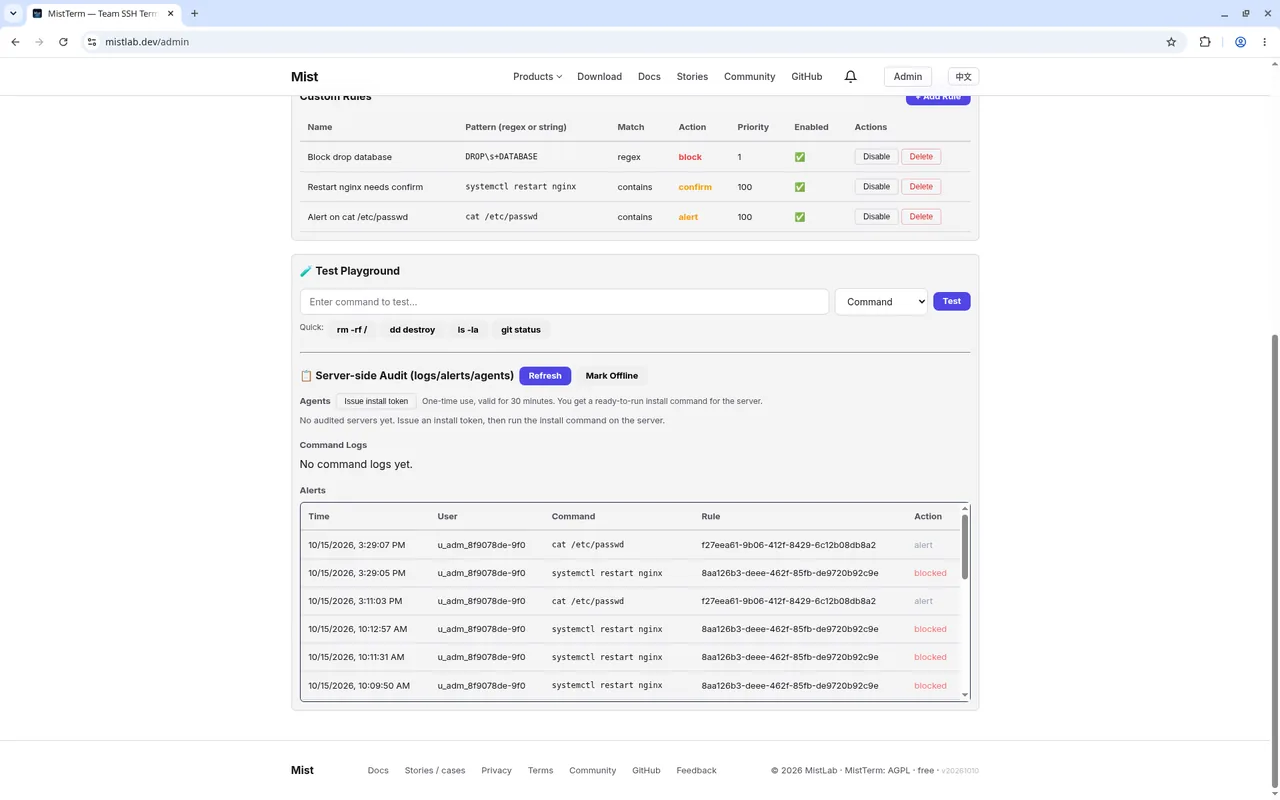
An alert rule never interrupts anyone. The command runs normally in MistTerm.
Every match is logged to the console's Alerts list with the command, the time and the rule action, so admins can review risky activity later. Both images here are from the console, because the client doesn't show anything different.
Team snippets
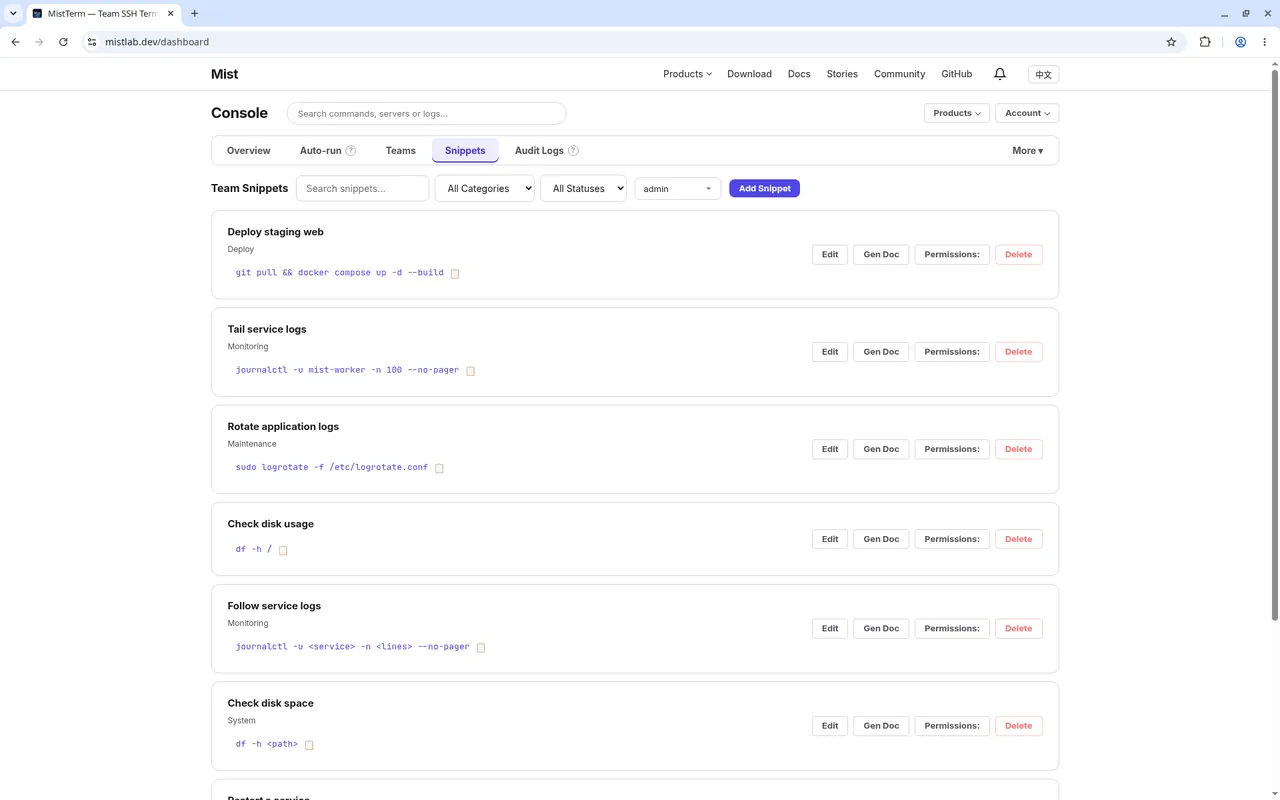
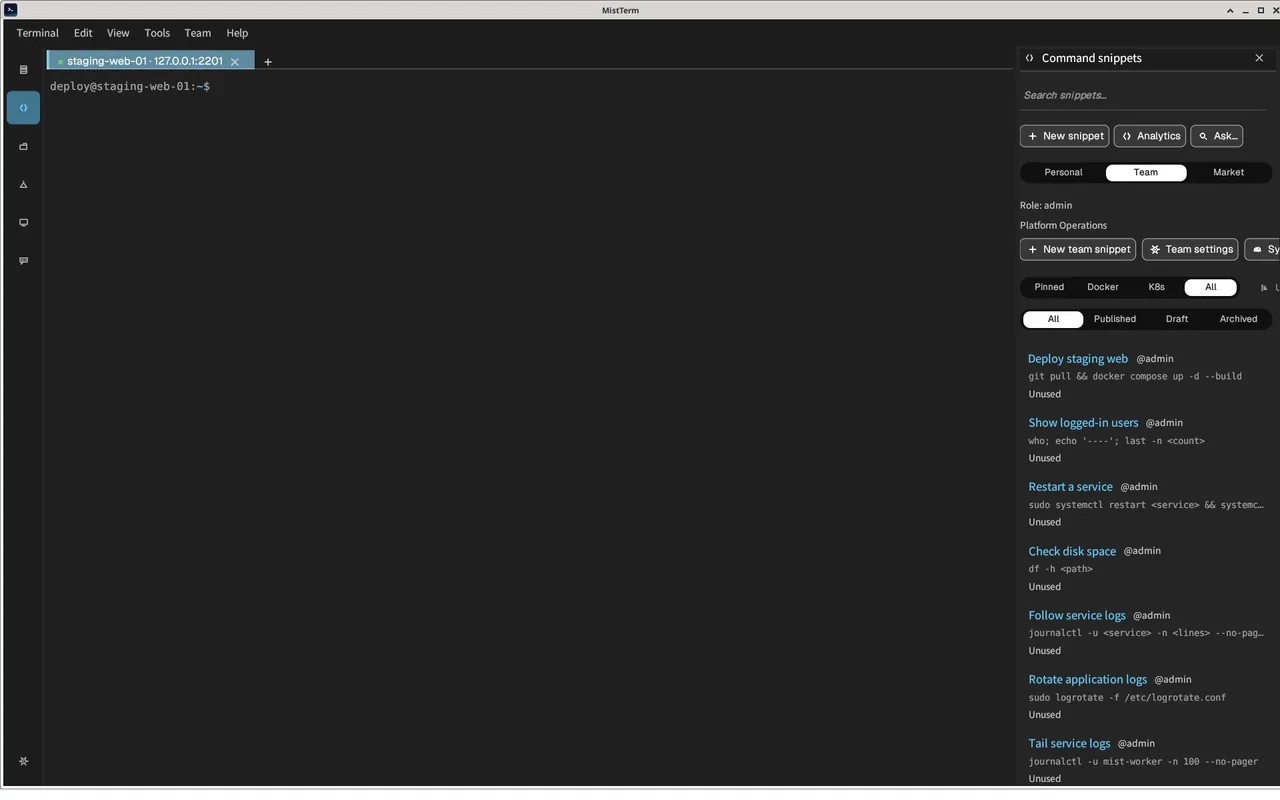
Admins create and organize shared command snippets in the console.
Team members see them in MistTerm under Command snippets → Team, ready to run with placeholders such as <service> filled in at run time. Everyone runs the same vetted commands, and nobody has to copy them from a wiki.
Members & roles
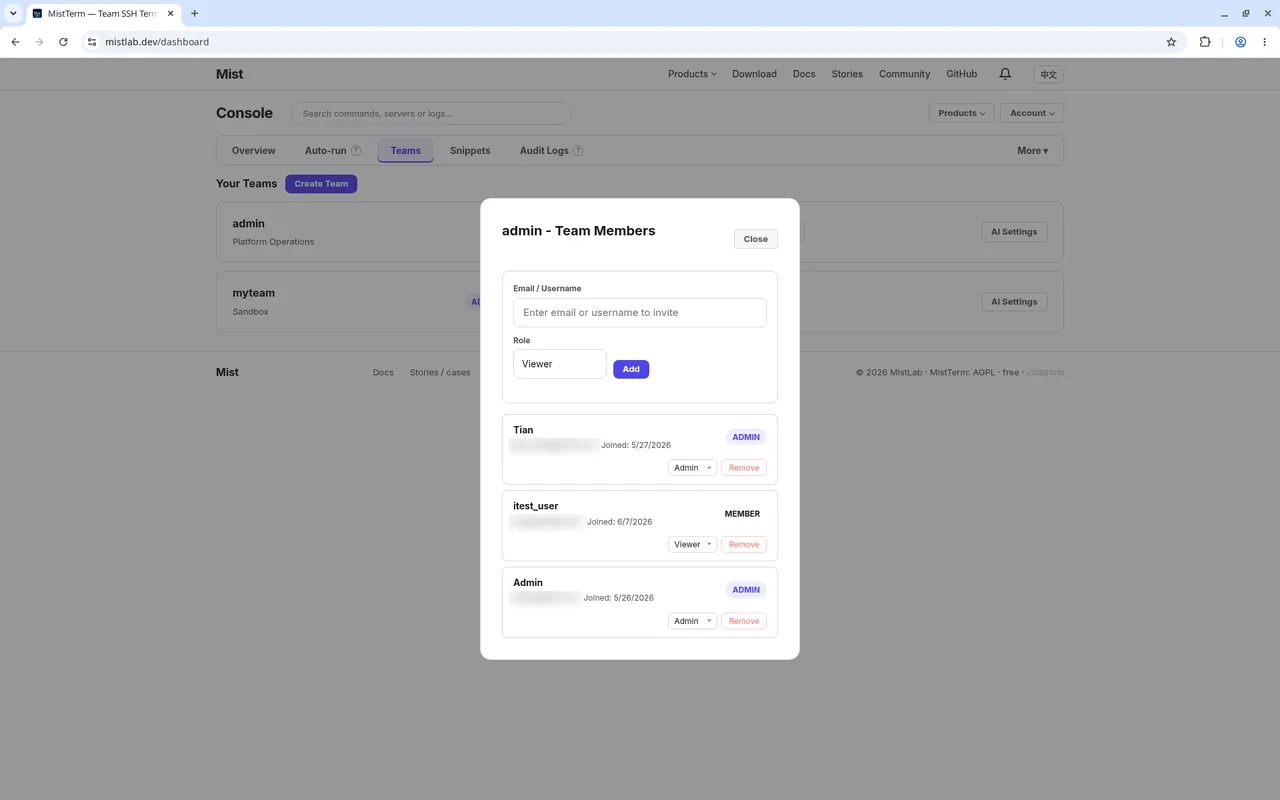
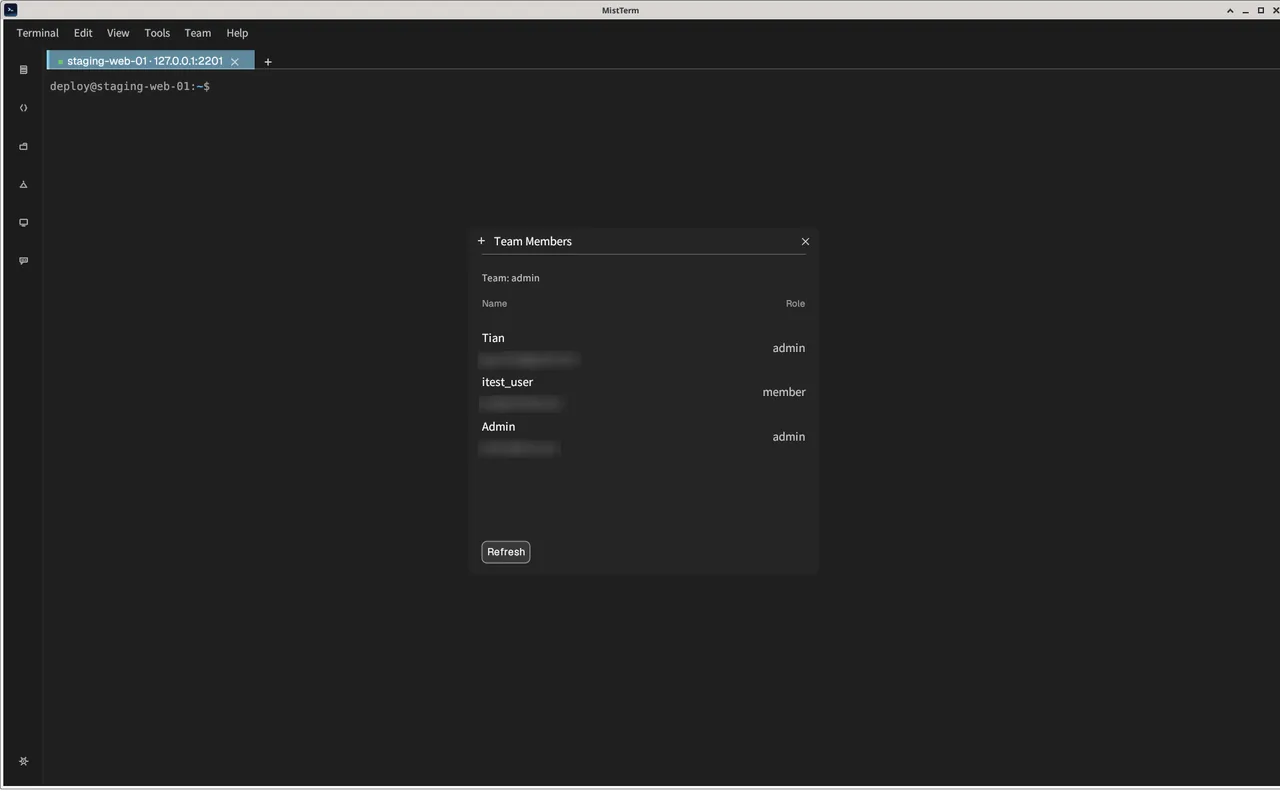
Invite people by email or username and give each one a role from the team's member list.
MistTerm shows the same roster and roles under Team → Team Members. Role changes made in the console show up after a refresh.
Server status
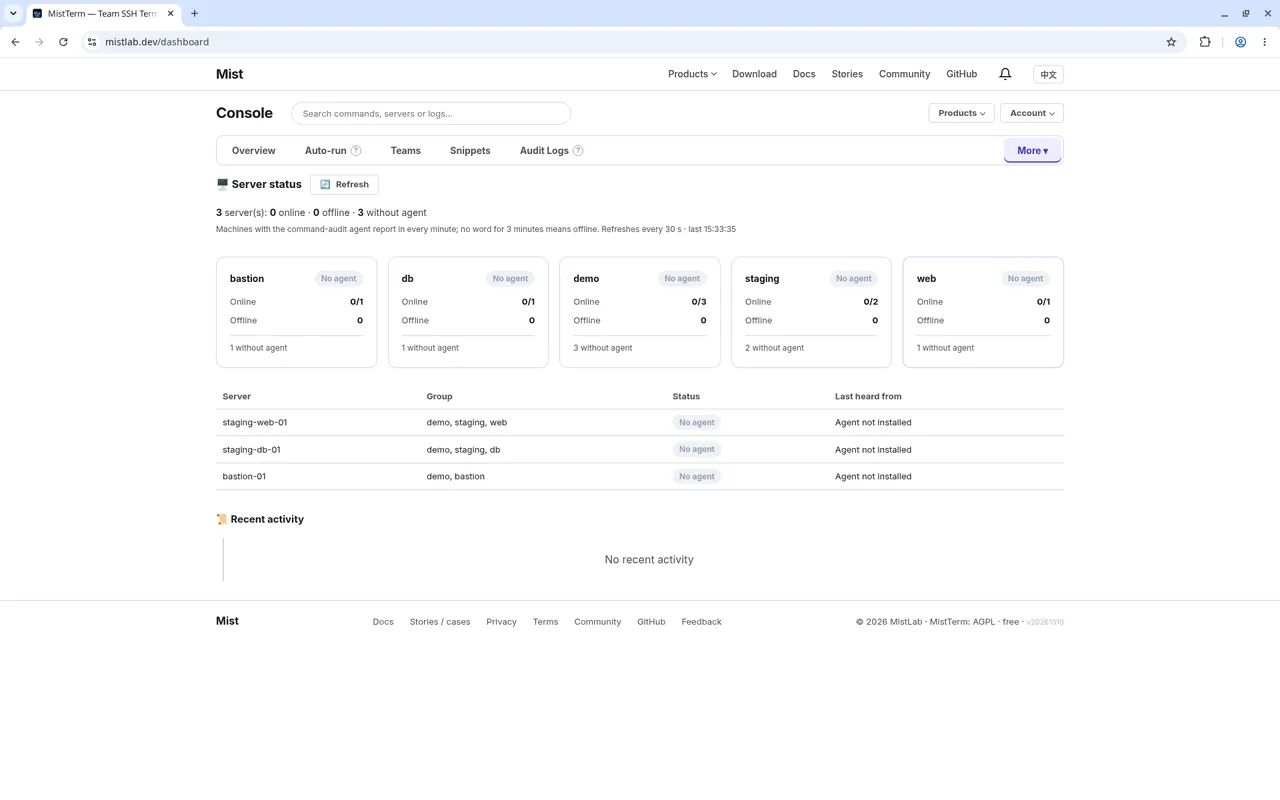
The console shows how many team servers there are and their reported status. A server without recent data is shown as unknown, not falsely as offline.
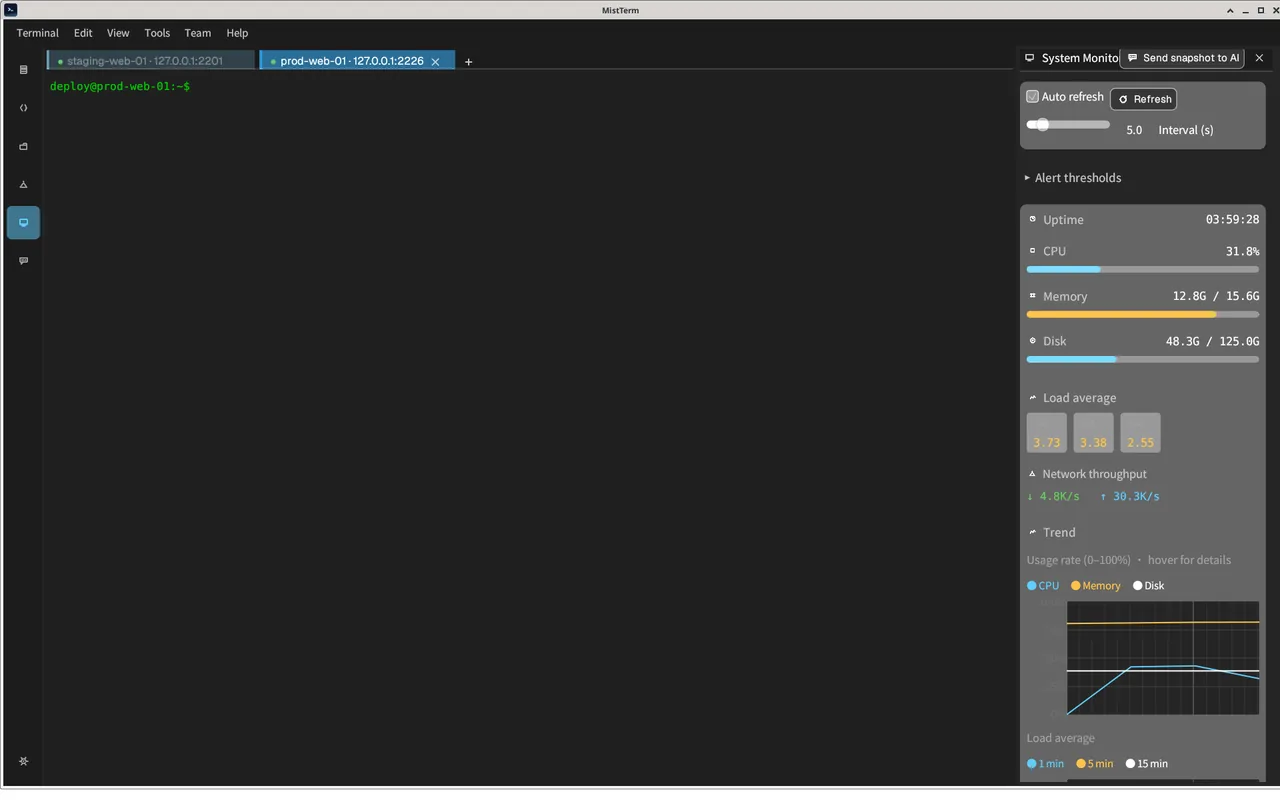
In MistTerm, the monitor panel shows live CPU, memory and disk usage for the connected server, with trend charts.
Note: collaboration sessions
Collaboration sessions are a web-console feature. You create and join shared sessions at mistlab.dev, and MistTerm has no collaboration entry point, so there's no client-side pair for it.