3-minute quick start
Experience a MistTerm differentiator first, then turn on team features if you need them.
- Install MistTerm from the download page (fresh installs include example commands and a one-time guide).
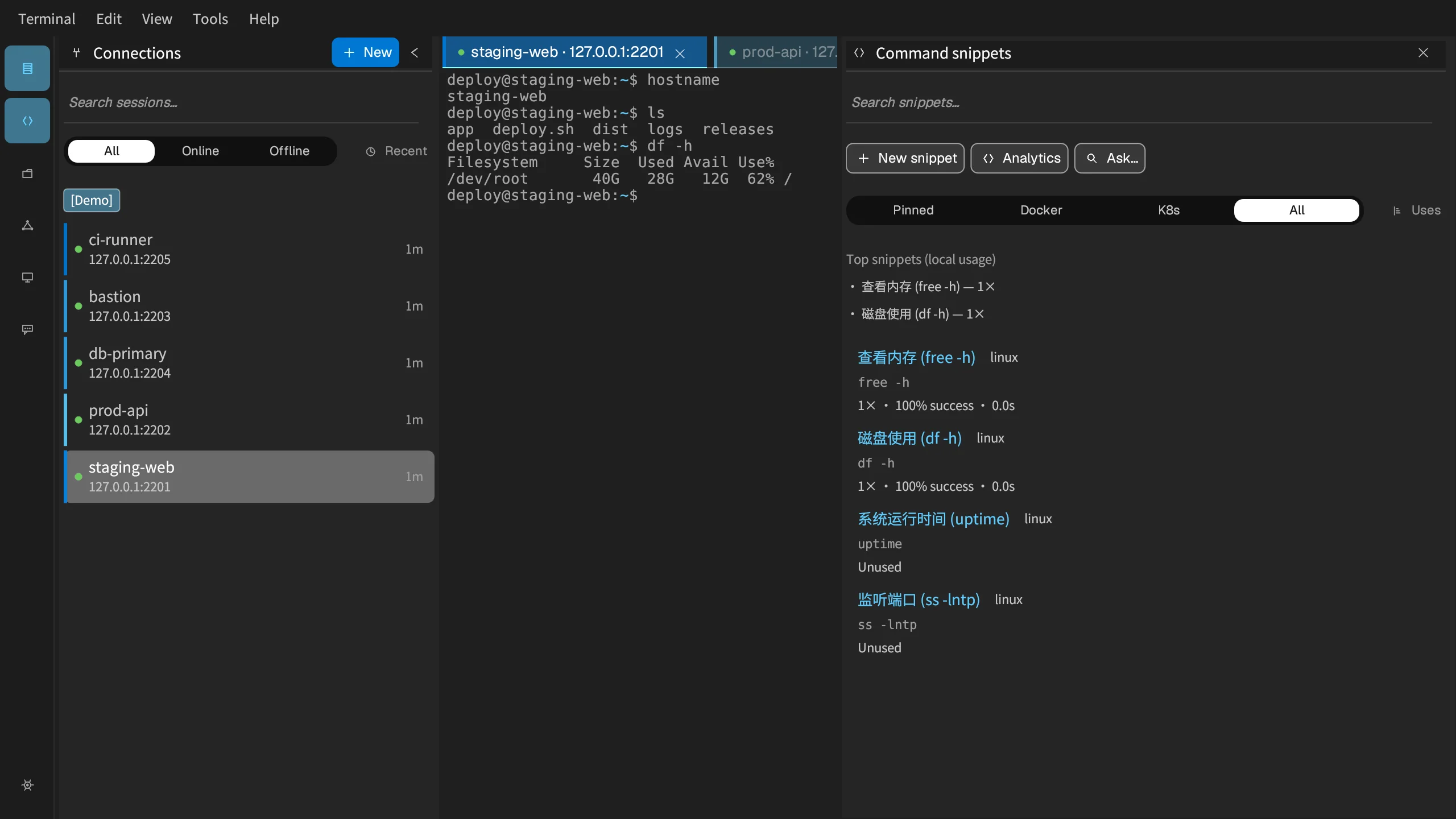
- Add an SSH server and connect; run a built-in example command (disk/memory) from the library.
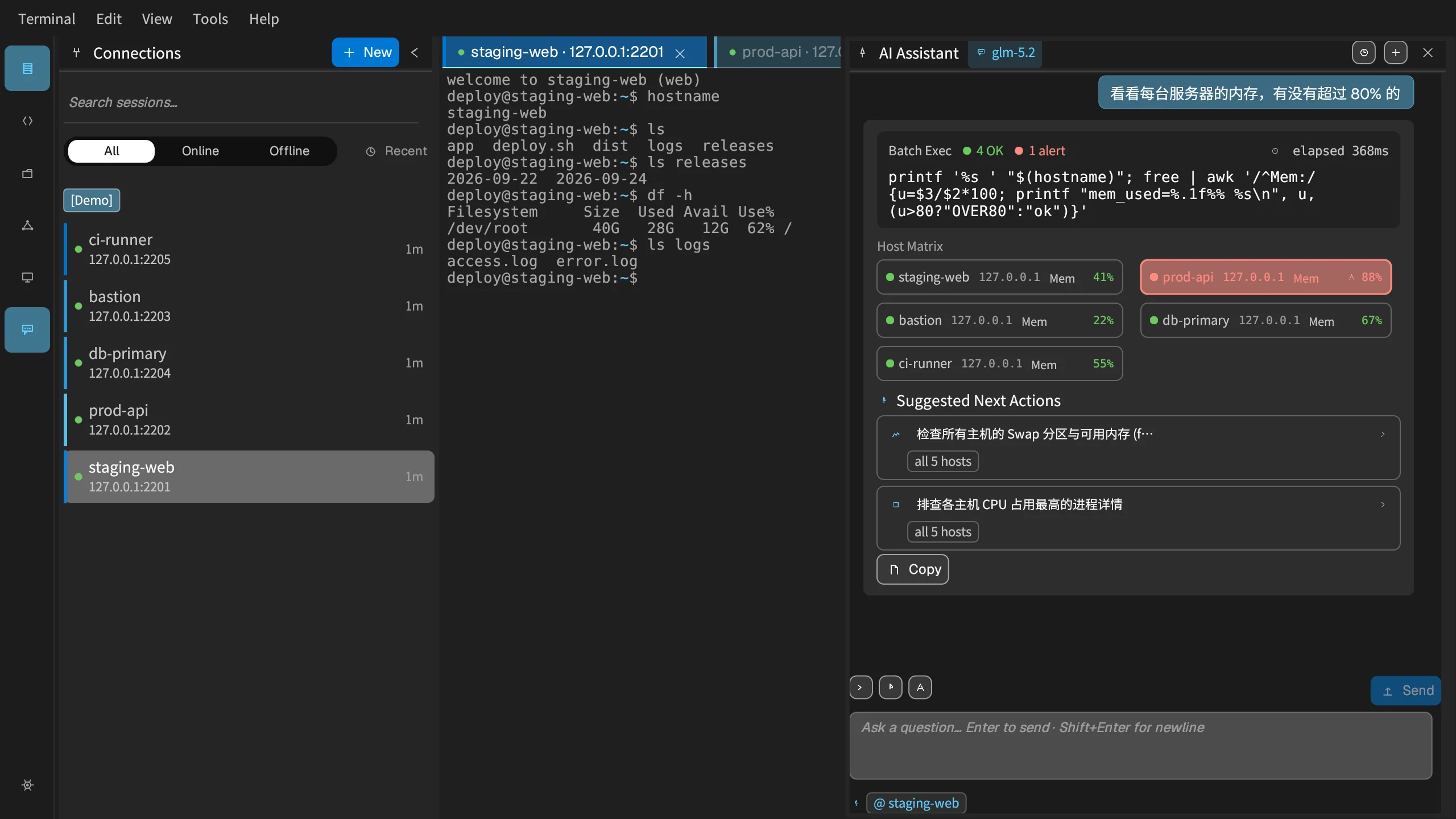
- Optional: create a free team for certificates and command records; try AI multi-host “check disk on all servers” (no API key).
- Optional: write the first runbook in MistDocs, or use port forwarding in the UI /
mist fwd.
What it looks like
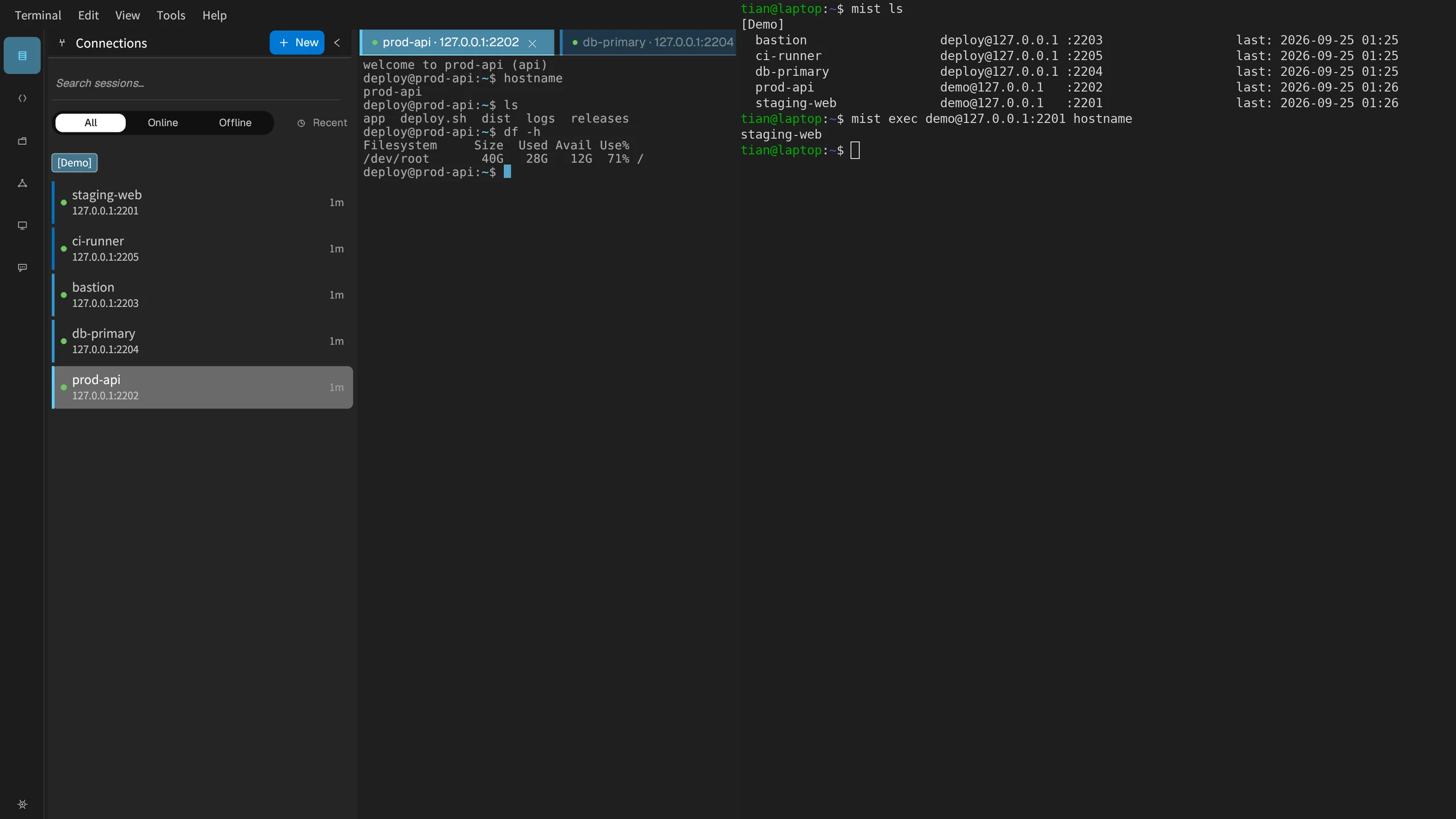
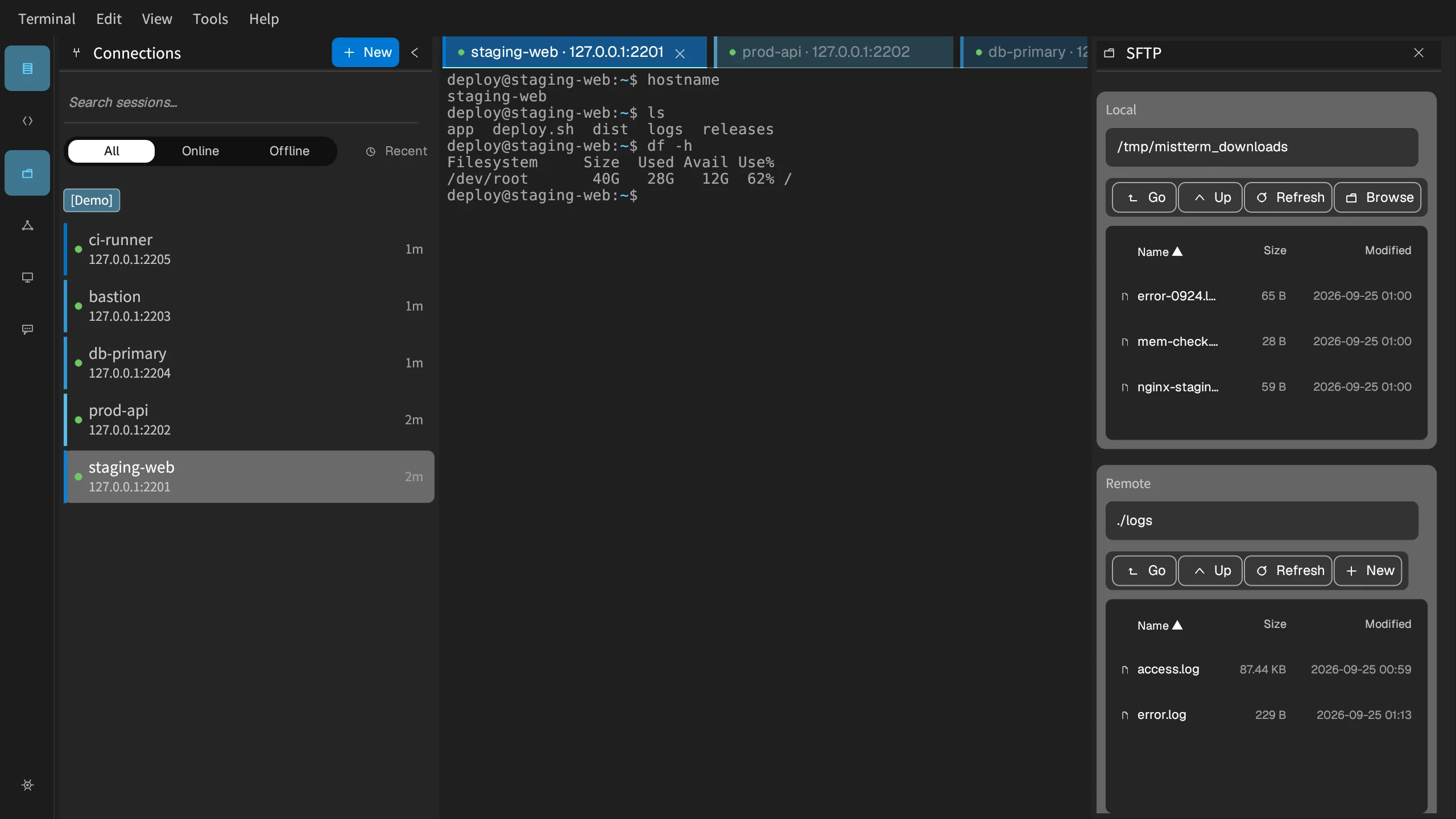
Real screenshots of the three products. The servers and data come from a demo setup.
MistTerm (terminal)
MistDocs (team docs)


Console (team admin)
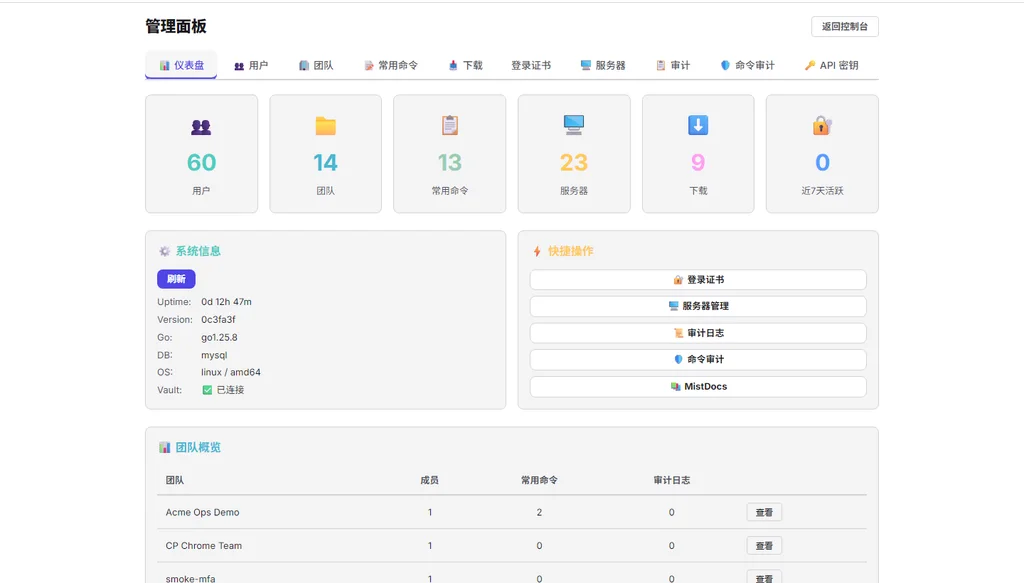
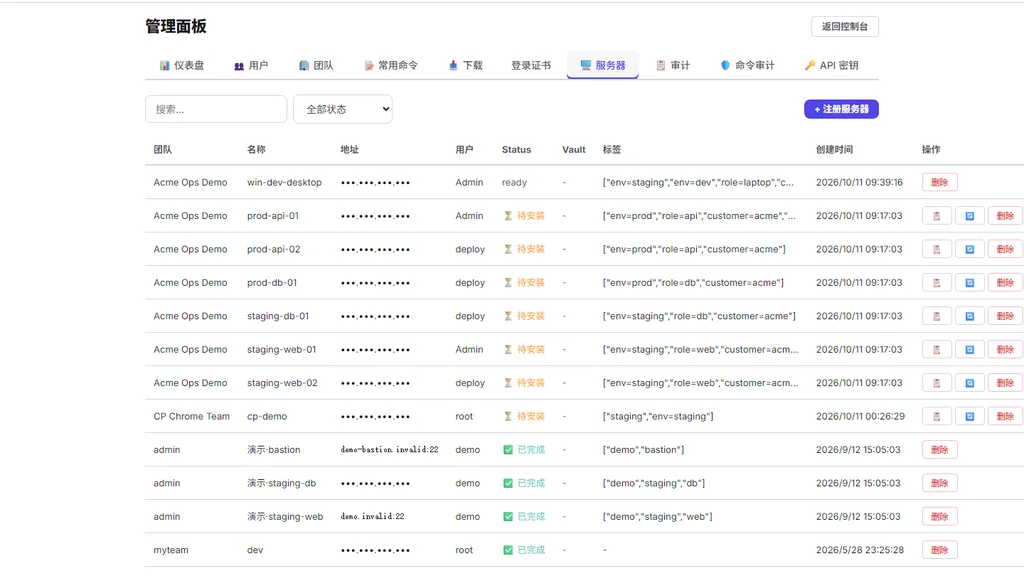
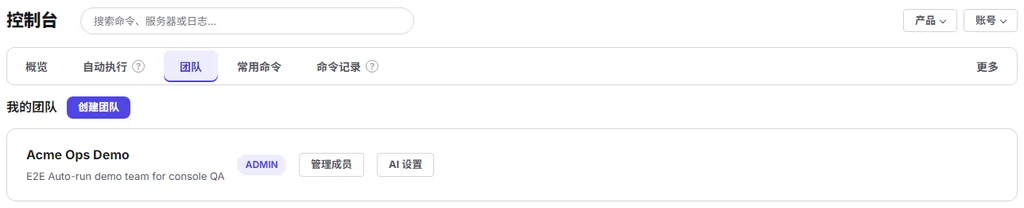
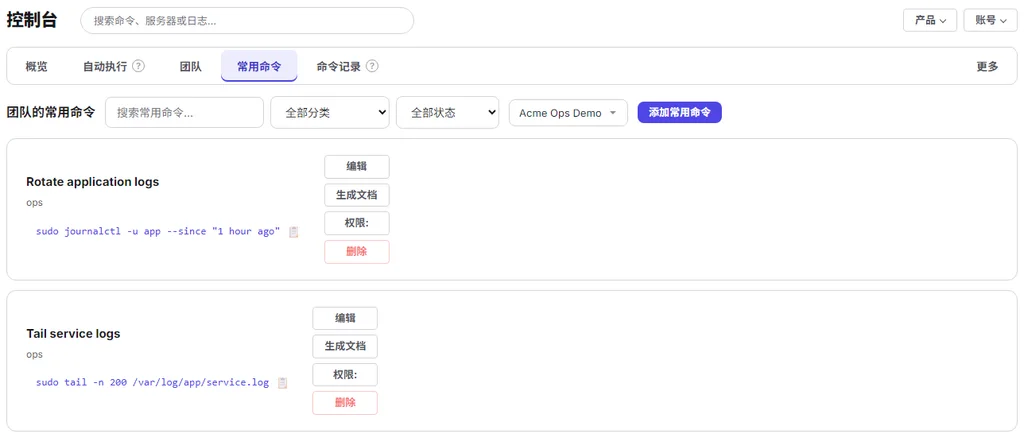
These are the signed-in admin pages. The console is where you see your teams and saved commands. The admin panel shows the totals and the server list.
Install MistTerm
MistTerm is the desktop terminal for Windows, macOS, and Linux. Download the latest release, then sign in with your MistLab account.
Current client release: MistTerm v1.2.10 · download page.
Add your first server
- Open the server manager and choose Add server.
- Enter the hostname, port, and SSH username.
- Log in with an existing SSH key, or have your team issue a short-lived login certificate.
- On first connection, check the server fingerprint (it confirms you reached the right machine).
MistTerm CLI (mist)
If you prefer typing commands, use the mist command-line tool that comes with MistTerm. It shares saved servers, jump hosts (servers you log in through), and credentials with the desktop app, so you don't sign in again.
Set up your team: roles, shared commands, and runbooks
Manage member access and ops docs in one place, the console at mistlab.dev.
- Assign admin, editor, or viewer roles to each member.
- Save frequently used commands to the team library after someone has checked them.
- Write deployment and incident runbooks in MistDocs.
- Share a document externally with a time-limited or password-protected link.
Review command records
Each command record shows the command, who ran it, the server, and the time. Risky commands get a tag, and that is all the tag does. By default commands are only recorded and nothing is blocked; blocking and confirm-before-run come only after a team admin turns on those rules (Team plan). To suggest a safe alternative when a command is blocked, first save your approved commands to the library.
Command audit is there to catch slips and remind new teammates. It won't stop someone who sets out to get around it; to guard against people, use the server agent together with account permissions. MistTerm checks commands sent from saved commands, command history, the AI ops assistant and batch runs; commands typed straight into the terminal aren't checked yet. On servers, only commands root runs directly with ssh host "command" are checked and recorded; commands typed after logging in over ssh are neither checked nor recorded, and if the team server can't be reached the command runs unchecked. What it can and can't do
- Open Audit from the console navigation.
- Choose a team and time range.
- Filter logs by action or search for a command.
- Check the risk tag on the record. A "confirm" rule shows a dialog in MistTerm so the person running the command confirms it themselves; there is no flow yet that sends a command to someone else for approval before it runs.
Three time-saving ways to use MistTerm
One host list for the GUI and the mist CLI, a confirmed read-only pass across machines, and real command snippets. Commands are only recorded by default; blocking is opt-in.
What's next
Once the basics work: set up SSH certificate signing (temporary certificates instead of long-lived keys), write a deployment runbook, and use a webhook to notify your systems about important command records.